> For the complete documentation index, see [llms.txt](https://kiris-docs.gitbook.io/autonity-r6/llms.txt). Markdown versions of documentation pages are available by appending `.md` to page URLs; this page is available as [Markdown](https://kiris-docs.gitbook.io/autonity-r6/autonity-r6.md).
# Autonity R6
* Preparing the server
* 1\. Install the Autonity Utility (aut)
* 2\. Install Autonity node
* 3\. Install Oracle
* FORM 1 - REGISTRATION
* VALIDATOR REGISTRATION
* FORM 2 - VALIDATOR REGISTRATION
* Validator migration
\
[**Details**](https://docs.autonity.org/networks/testnet-piccadilly/)
* ### Piccadilly Testnet details
| **Field** | **Input** |
| ----------------------------- | --------------------------------------- |
| Network Name | `Autonity Piccadilly (Barada) Testnet` |
| New RPC URL | `https://rpc1.piccadilly.autonity.org/` |
| ChainID | `65100003` |
| Symbol | `ATN` |
| Block Explorer URL (optional) | `https://piccadilly.autonity.org/` |
**Round 6 is open!**
* **Start Time** : 06/26/24 - 00:00 UTC
Basic information and form here -
Preparing the server :
```bash
# update repositories
apt update && apt upgrade -y
# install the necessary utilities
apt install curl iptables build-essential git wget jq make gcc nano tmux htop nvme-cli pkg-config libssl-dev libleveldb-dev tar clang bsdmainutils ncdu unzip chrony libleveldb-dev liblz4-tool -y
```
**File2Ban** - more details [here](https://putty.org.ru/articles/fail2ban-ssh.html) and [here](https://www.linuxshop.ru/articles/a26710798-nastroyka_fail2ban)
```bash
# install and copy the config, which will have a higher priority
apt install fail2ban -y && \
cp /etc/fail2ban/jail.conf /etc/fail2ban/jail.local && \
nano /etc/fail2ban/jail.local
# uncomment and add your IP: ignoreip = 127.0.0.1/8 ::1
systemctl restart fail2ban
# check status
systemctl status fail2ban
# check which jails are active (by default only sshd)
fail2ban-client status
# check sshd statistics
fail2ban-client status sshd
# look at the logs
tail /var/log/fail2ban.log
# stop work and remove from startup
#systemctl stop fail2ban && systemctl disable fail2ban
```
Installing GO :
```bash
ver = "1.21.3" && \
wget "https://golang.org/dl/go $ver .linux-amd64.tar.gz" && \
sudo rm -rf /usr/local/go && \
sudo tar - C /usr/local -xzf "go $ver .linux-amd64.tar.gz" && \
rm "go $ver .linux-amd64.tar.gz" && \
echo "export PATH= $PATH :/usr/local /go/bin: $HOME /go/bin" >> $HOME /.bash_profile && \
source $HOME /.bash_profile && \
go version
```
We install ethkey, which we will need next to pull out the private one :
```bash
git clone https://github.com/autonity/autonity.git autonity1
cd autonity1
make all
mv build/bin/ethkey /usr/local/bin
ethkey --version
#ethkey version 0.14.0-15cd0164-20240619
```
**Important:** If you have problems installing aut or other binaries, add the following variables and do this `make clean` before installing again :
```bash
export CGO_CFLAGS = "-O -D__BLST_PORTABLE__"
export CGO_CFLAGS_ALLOW = "-O -D__BLST_PORTABLE__"
make clean
```
## 1. [Install the Autonity Utility (aut)](https://docs.autonity.org/account-holders/setup-aut/)
The recommended way to interact with the Autonity network is through [the Autonity Utility Tool](https://github.com/autonity/aut) `aut` , which provides a command line interface for Autonity-specific queries and operations, as well as much of the core Ethereum functionality. Typically, it only needs to be installed on *local* machines to connect to the Autonity Go client RPC endpoint (either your own host or a host providing public RPC access) :
```bash
# For ubuntu 20.04
cd
apt install python3-pip && \
apt install python3.8-venv && \
pip install pipx
# For ubuntu 22.04
cd
apt install python3-pip && \
apt install python3.10-venv && \
pip install pipx
```
```bash
# to install or update
pipx install --force git+https://github.com/autonity/aut
mv /root/.local/bin/aut /usr/local/bin/aut
```
```bash
aut --version
#aut, version 0.4.0
```
We create `.autrc`a file thanks to which the aut utility will search for a specific configuration :
```bash
tee << EOF > /dev/null $HOME /.autrc
[out]
rpc_endpoint= ws://127.0.0.1:8546
EOF
```
### 2. [Install Autonity node](https://docs.autonity.org/node-operators/install-aut/)
The team assumes that Autonity Go will be installed on a *host* machine (VPS or other host that is always on and always available), and a separate *local* machine will be used to create transactions and requests that are then sent to the Autonity Go client on the *host* machine via an RPC endpoint
In this guide we will run everything on 1 server, but these actions are not recommended!!!
> **Note** : This guide is intended for use on *test networks* , for which there is no real value at stake. A production setup will likely have requirements not covered in this guide, such as node availability and security. For example, the configuration described here provides an unencrypted `http`RPC endpoint
**Incoming traffic must be allowed to:**
* `TCP, UDP 30303`for communication with a p2p node (DEVp2p)
You can also allow traffic on the following ports:
* `TCP 8545`to establish http RPC connections with a host
* `TCP 8546`to establish RPC WebSocket connections with the host
* `TCP 6060`to export Autonity metrics (recommended, but not required)
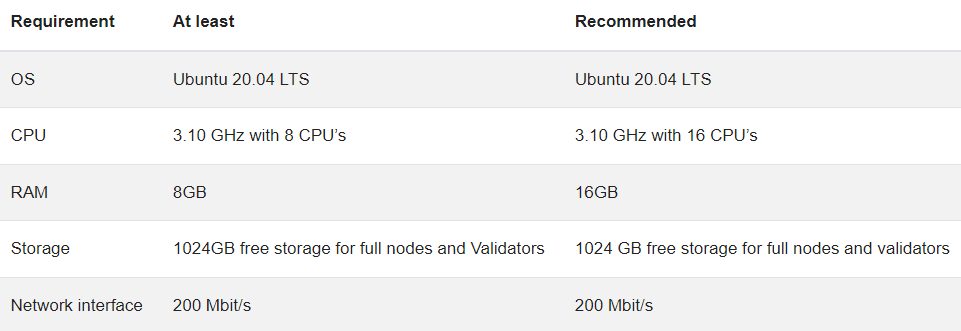
**RECOMMENDED SPECIFICATIONS**
**Download the binary file. Current versions can be found** [**here**](https://github.com/autonity/autonity/releases)
```bash
cd
git clone https://github.com/autonity/autonity && cd autonity
git checkout tags/v0.14.0 -b v0.14.0
make autonity
mv $HOME /autonity/build/bin/autonity /usr/local/bin/
```
```bash
autonity version
#Version: 0.14.0
```
We create the autonity-chaindata directory to store autonity working data and create the keys we need :
```bash
cd
mkdir -p $HOME /autonity-chaindata/autonity
```
*Starting from version 0.13.0 **nodekey** was renamed to **autonitykeys.** In this tutorial we will generate nodekey ourselves. to leave the old name and add a flag `--autonitykeys $HOME/autonity-chaindata/autonity/nodekey`to the service file*
> We need to create **nodekey, tresure.key** and **oracle.key**
>
> **nodekey** is the main key of the node, from which the validator address and enode are formed
>
> **tresure.key** will be our treasury. With this key we will delegate to the validator and we will receive rewards for this key
>
> **oracle.key** will be used as the cryptographic identifier of the Oracle server and will be used to sign price report transactions sent to Oracle Contract on-chain
>
> Transaction costs for submitting online pricing report data *are reimbursed* , but you must **pre-fund your oracle.key account** to prevent an *out-of-gas* error on your first transaction.
>
> **!!! Be sure to top up your Oracle wallet after launching the node!!!**
Generating nodekey :
```bash
autonity genAutonityKeys $HOME /autonity-chaindata/autonity/nodekey --writeaddress
```
Create a separate directory for tresure.key and oracle.key :
```bash
mkdir -p $HOME /.autonity/keystore
aut account new -k $HOME /.autonity/keystore/oracle.key
aut account new -k $HOME /.autonity/keystore/tresure.key
```
{% hint style="info" %}
IMPORTANT: Be sure to make backup copies of your keys. Also remember the passphrase you used when creating it! If you do not remember the password, you will not be able to decrypt this private key file and you may lose all funds associated with this account!!!
{% endhint %}
**Now we add `.autrc`treasure to our key**
```
nano $HOME /.autrc
```
The line is added`keyfile=/root/.autonity/keystore/tresure.key`\
\
**Create a service file**
We don't need bootnodes, since everything should be pulled up using a flag`--piccadilly`
```bash
tee << EOF > /dev/null /etc/systemd/system/autonity.service
[Unit]
Description=autonity node
After=network.target
[Service]
User= $USER
Type=simple
ExecStart= $( which autonity ) --datadir $HOME /autonity-chaindata --syncmode full --piccadilly --http --http.addr 0.0.0.0 --http.api aut,eth,net,txpool,web3,admin --http.vhosts \* --ws --ws.addr 127.0.0.1 --ws.api aut,eth,net,txpool,web3,admin --autonitykeys $HOME /autonity-chaindata/autonity/nodekey --nat extip: $( curl 2ip.ru )
Restart=on-failure
LimitNOFILE=65535
[Install]
WantedBy=multi-user.target
EOF
```
```bash
systemctl daemon-reload
systemctl enable autonity
sudo systemctl restart autonity && journalctl -u autonity -f -o cat
```
### 3. [Install Oracle](https://docs.autonity.org/oracle/install-oracle/)
The team assumes that Autonity Oracle will run on a separate device (VPS or other host that is always on and always available) and a separate server will be used for the Autonity Go client. It is assumed that oracle will run through WSS
In this guide we will run everything on 1 server, but these actions are not recommended
**Incoming traffic must be allowed to:**
* `TCP 8546`to connect WebSocket RPC to a host
```bash
cd
git clone https://github.com/autonity/autonity-oracle && cd autonity-oracle
git fetch --all
git checkout v0.1.9
make autoracle
mv build/bin/autoracle /usr/local/bin
#cp e2e_test/plugins/ simulator_plugins/sim_plugin build/bin/plugins/sim_plugin
```
```bash
autoracle version
#v0.1.9
```
Now you need to edit :
```bash
vim $HOME /autonity-oracle/build/bin/plugins-conf.yml
```
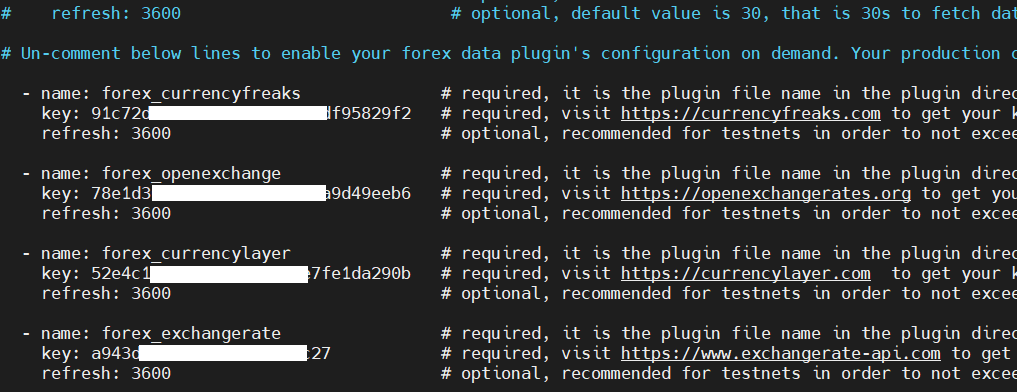
You `plugins-conf.yml`need to uncomment the bottom lines, register using the links, get the API keys and add them below. Also, be sure to add the **refresh request time: 3600** as in the screenshot below, so that the API limits do not quickly burn out
Websites:
*
*
*
*
My example file looks like this
> #### FORM 1 - REGISTRATION
>
> **IMPORTANT - register only if you did not participate in round 4 (R4)**
>
> Now is the time to register your participation in the test network to receive test tokens. To do this, go to the website and fill out the data -
>
> * In **the autonity address** field , insert the **tresure address**
> * In **the Signature hash** field , insert the hash of the signed transaction after the command`aut account sign-message "I have read and agree to comply with the Piccadilly Circus Games Competition Terms and Conditions published on IPFS with CID QmVghJVoWkFPtMBUcCiqs7Utydgkfe19wkLunhS5t57yEu"`
>
> After registration, you will receive a confirmation email and tokens should be credited to your balance. You can check your balance in Explorer or with the command`aut account info`
{% hint style="info" %}
**Decoding a key file/obtaining a private key**
```
ethkey inspect --private /root/.autonity/keystore/oracle.key
```
> after the command you will see the private key for the oracle account! It must be used below in the genOwnershipProof command
> {% endhint %}
#### VALIDATOR REGISTRATION
After tokens appear on your balance, you can continue
**Step 1. Create a cryptographic proof of node ownership**
Replace ``and ``with your values
```bash
autonity genOwnershipProof --autonitykeys $HOME /autonity-chaindata/autonity/nodekey --oraclekeyhex < privatekey oracle > < treasure account address >
```
!!! after the transaction we save`Signature hex`
**Step 2. Determine the enode and validator address**
```bash
# get enode
aut node info
```
```bash
# get the validator address
aut validator compute-address < enode >
```
!!! after transactions, save the validator address and enode
**Step 3. Get the consensus public key**
```bash
ethkey autinspect $HOME /autonity-chaindata/autonity/nodekey
```
**Step 4. Send the registration transaction from the tresure wallet**
```bash
# register the validator
aut validator register < ENODE > < ORACLE_ADDRESS > < CONSENSUS_KEY > < PROOF > | aut tx sign - | aut tx send -
```
!!! after the transaction we save the hash
**Now we can try to find our validator address in the list**
aut validator list
**Check validator**
```bash
aut validator info --validator <0x8959c6f02624ba57b8a185f66c00f278d5ef9910>
```
**We create a service file for Oracle and run it. First add the wallet password to the service file**
```bash
tee << EOF > /dev/null /etc/systemd/system/antoracle.service
[Unit]
Description=Autonity Oracle Server
After=syslog.target network.target
[Service]
Type=simple
ExecStart= $( which autoracle ) -key.file="/root/.autonity/keystore/oracle.key" -plugin.dir="/root/autonity-oracle/build/bin/plugins/" -plugin.conf= "/root/autonity-oracle/build/bin/plugins-conf.yml" -key.password="" -ws="ws://127.0.0.1:8546"
Restart=on-failure
RestartSec=5
[Install]
WantedBy=multi-user.target
EOF
```
```bash
systemctl daemon-reload
systemctl enable antoracle
systemctl restart antoracle && journalctl -u antoracle -f -o cat
```
**Now we need to bond NTN to the validator**
Steak will appear by the next era
```bash
aut validator bond --validator < validator_address > 1 | aut tx sign - |
```
#### FORM 2 - VALIDATOR REGISTRATION
**Now is the time to register your validator. To do this, go to the website and read the conditions -** [**https://game.autonity.org/round-6/validator-sdp/**](https://game.autonity.org/round-6/validator-sdp/)
**You will also need to fill out the following form -** [**https://stake-delegation.pages.dev/#join**](https://stake-delegation.pages.dev/#join)
On the node, you need to sign the message `aut account sign-message "Application for the stake delegation program"`and insert the hash into the **SIGNATURE OF MESSAGE VALIDATOR ONBOARDED column.** You need to sign with a nodekey wallet **.** So first we need to convert nodekey to the required format
**Step 1. Get the node key from the file nodekey (autonitykeys)**
This operation will show your **private node key in the terminal**
```bash
head -c 64 $HOME /autonity-chaindata/autonity/nodekey
```
**Step 2. From the received privat, create a nodekey in the home directory and enter the privat key obtained from the previous command into it**
```bash
nano $HOME /nodekey2
```
**Step 3. Get the node key from the file nodekey (autonitykeys)**
```bash
aut account import-private-key $HOME /nodekey2
```
**Step 4. Rename the wallet to an easy-to-read format**
```bash
mv $HOME /.autonity/keystore/UTC* $HOME /.autonity/keystore/nodekey.key
```
**Step 5. Sign the transaction**
```bash
aut account sign-message "Application for the stake delegation program" -k $HOME /.autonity/keystore/nodekey.key
```
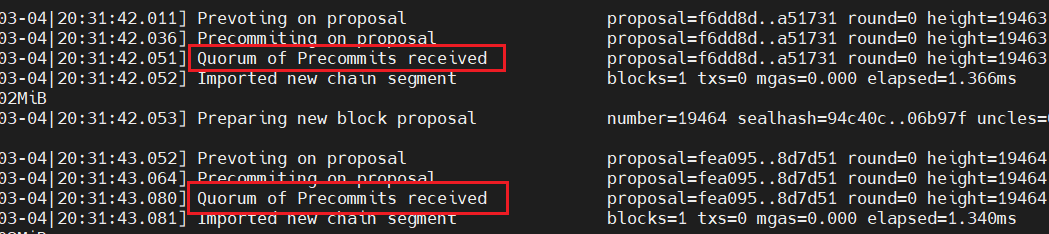
As soon as the validator is selected to the committee, we should see similar logs on the node
### [Validator migration](https://docs.autonity.org/node-operators/run-aut/#migrating-an-autonity-go-client)
If we need to transfer a validator, then before that we need to save all our keys and **nodekey (autonitykeys).** Also remember the old server IP address
1\. If you are validating and are in an active network (committee), then be sure to stop validating first. In this case, the validator’s active participation in the committee is suspended until reactivation. The bet is not automatically released from binding
```bash
aut validator pause --validator < VALIDATOR_IDENTIFIER_ADDRESS > | aut tx sign - | aut tx send -
```
2\. In order to make sure that the validator is stopped, use the following command, in which the value is **“state”: 1.** Also check which epoch is currently running. I recommend launching the validator on a new server after the start of the next epoch
After you are sure that **“state”: 1** you can stop the node and Oracle on the old server
```bash
aut validator info --validator
```
3\. If you haven't saved nodekey and other keys before, now is the time to do it. We will need to replace our keys on the new server
4\. On the new server, install the node and aut, but do not start!!!
5\. Create a directory and subdirectory `autonity-chaindata/autonity`. Once created, move the **nodekey (autonitykeys) file there**
```bash
mkdir -p autonity-chaindata/autonity
```
6\. Now we launch the node for synchronization as standard, having previously added the **--nat extip:\ key to the launch.** During the trial transfer I used the IP from the old server
7\. Launch the validator after waiting for the epoch to change
```bash
aut validator activate --validator < VALIDATOR_IDENTIFIER_ADDRESS > | aut
```